


Navigating Colleague Screens
Menu Bar
- File - Change printer settings (font type, font size, page orientation), lists recently run reports and exit Datatel.
- Apps - used to change applications. Users should be in the 'CF' application.
- Options - Not applicable.
- Favorites - frequently used reports can be added to favorites for easier access.
- Help - documentation on processes, forms and fields.
Quick Access
- Enables you to access any form directly by entering its mnemonic, or by using the recently used drop-down box.
Toolbar
-
Save - Save changes and return to previous screen (prompts for confirmation before saving).
- Save All - Save changes on current screen and all previous screens displayed and return to the main screen (no confirmation before saving).
-
Cancel - Abort changes and return to previous screen (prompts for confirmation before canceling).
- Cancel All - Abort changes on this screen and all previous screens displayed and return to the main screen (no confirmation before canceling).
-
collive - CF - current environment and application (should always be 'collive - CF').
-
Field help
 - display help for current field.
 - Exit
 - Click to exit Datatel.
- Go through the menu tree and double click on the mnemonic.
- Enter the mnemonic directly in the Quick Access box. There is also a drop-down box listing the last mnemonics you have accessed.
- The last 10 mnemonics are also listed under File in the menu bar.
- You can select mnemonics from you Favorites list.
To add to your Favorites list, select Favorites from the menu bar and enter your mnemonic.
-
Detail button
 - Goes to another screen showing more details on that item.
 - Window operation button
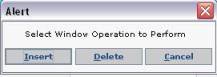
 - A Window Operation button enables you to insert or delete a row of data. When you click the Window Operation button, the Select Window Operation dialog box is displayed.
-
- Click Insert to insert a new row above the current row.
- Click Delete to delete the current row.
- Click Cancel to leave the row unchanged and return to editing.
-
Scroll buttons
 - allows you to view multiple values.
 -
Calendar button
 - Allows you to enter a date by selecting from a pop-up calendar display.
 -
Drop-down button
 - Brings up a list of valid codes from a drop-down list.
 - Calculator button (not shown)
 - Allows you to enter numeric values from a pop-up calculator.
-
Exit Report – close report browser and return to main screen.
-
Import – save a copy of the report to your hard drive.
-
Current page/ total pages – shows the number of the currently displayed page and total pages in report.
-
First page – jump to the first page of the report.
-
Previous page – move to the previous page of the report.
-
Next page – move to the next page in the report.
-
Last page – jump to the last page of the report.
-
Print local – print the report to a local printer.
-
Print remote - print the report to a network printer.
-
Printer - Use the default printer or select another printer installed on your system.
-
Print formatting – the font size typically needs to be courier new size 7 or smaller in order for the report to maintain its formatting. Check ‘Use Font’ and click on the ‘Font…’ button. In the ‘Choose Font’ dialog box, manually type in 7 at the ‘Size:’ drop-down box.